PencilTime
A pencil-first digital planner for iPad and iPhone. Handwrite, type, link, attach files, and mark up ideas on planner and Note pages.

iPad and iPhone · iOS 17.4 or later
Best for
Plan by hand. Type what must be clear.
- Apple Pencil planning
- Bullet journaling
- Student planning
- Project planning
- Visual notes
Why it matters
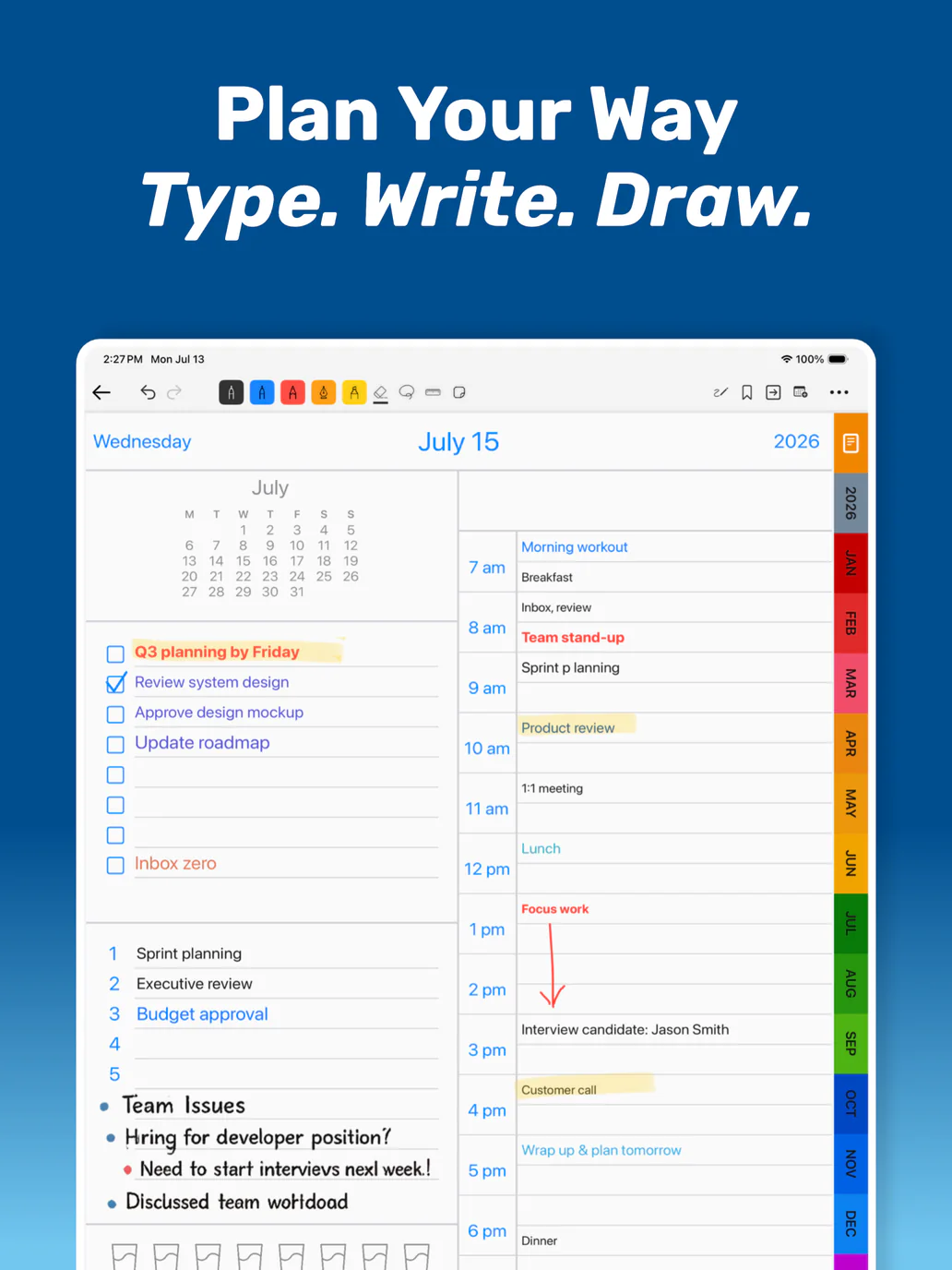
Plan by hand across day, week, month, and year views. Build Note Pages from bundled templates, keep Links and files beside your plans, and add editable Shape markup.
Features
Designed around real workflows.
Start with a useful Note layout
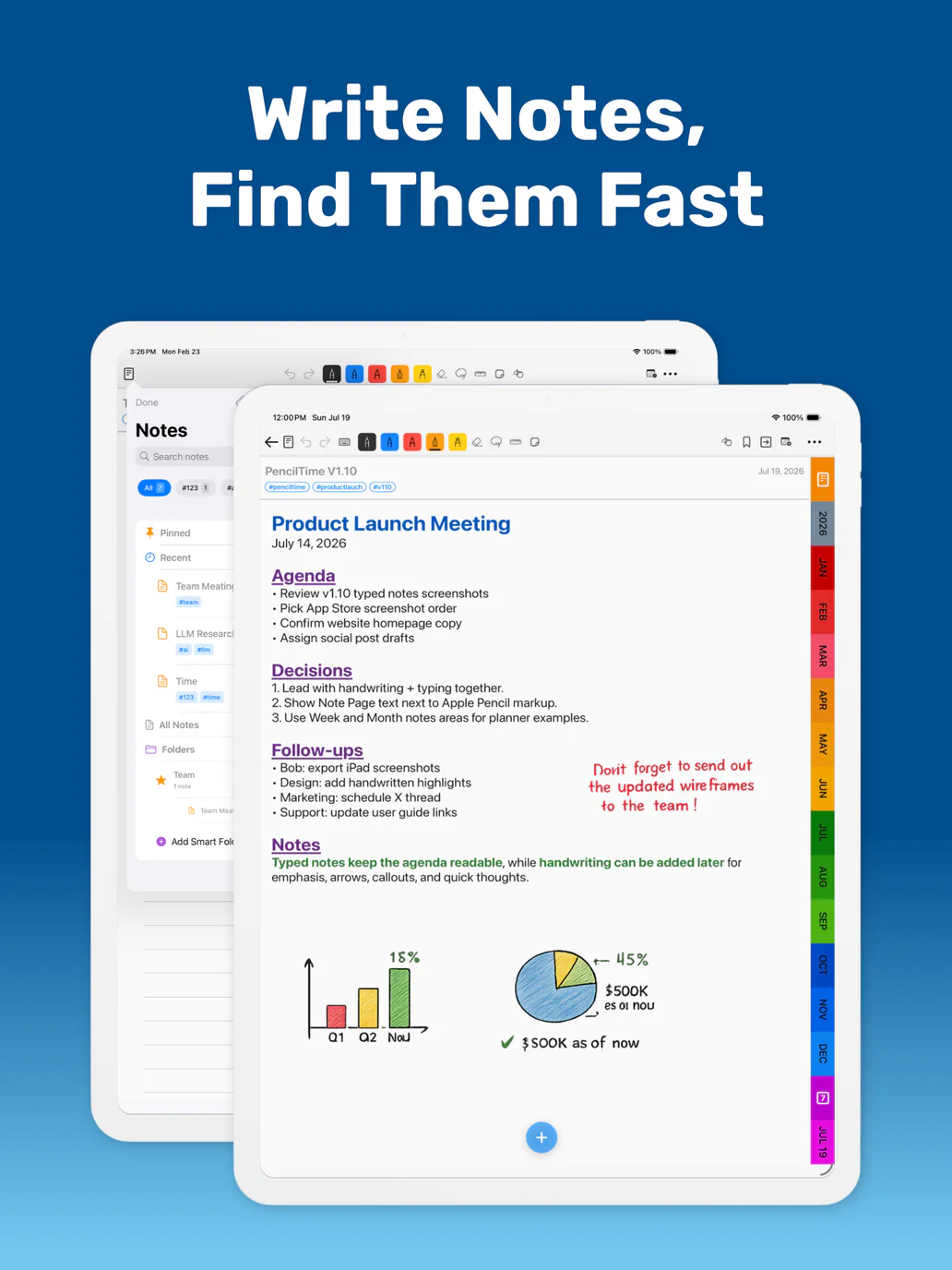
Choose from 26 bundled Note page templates for study, work, productivity, personal planning, home and money, and creative projects. Change the background later without moving your content.
Write by hand, type what must be clear
Use Apple Pencil for flexible planning and visual thinking. Type on any bundled Note template, then show or hide its background without deleting your text.
Keep resources beside the work
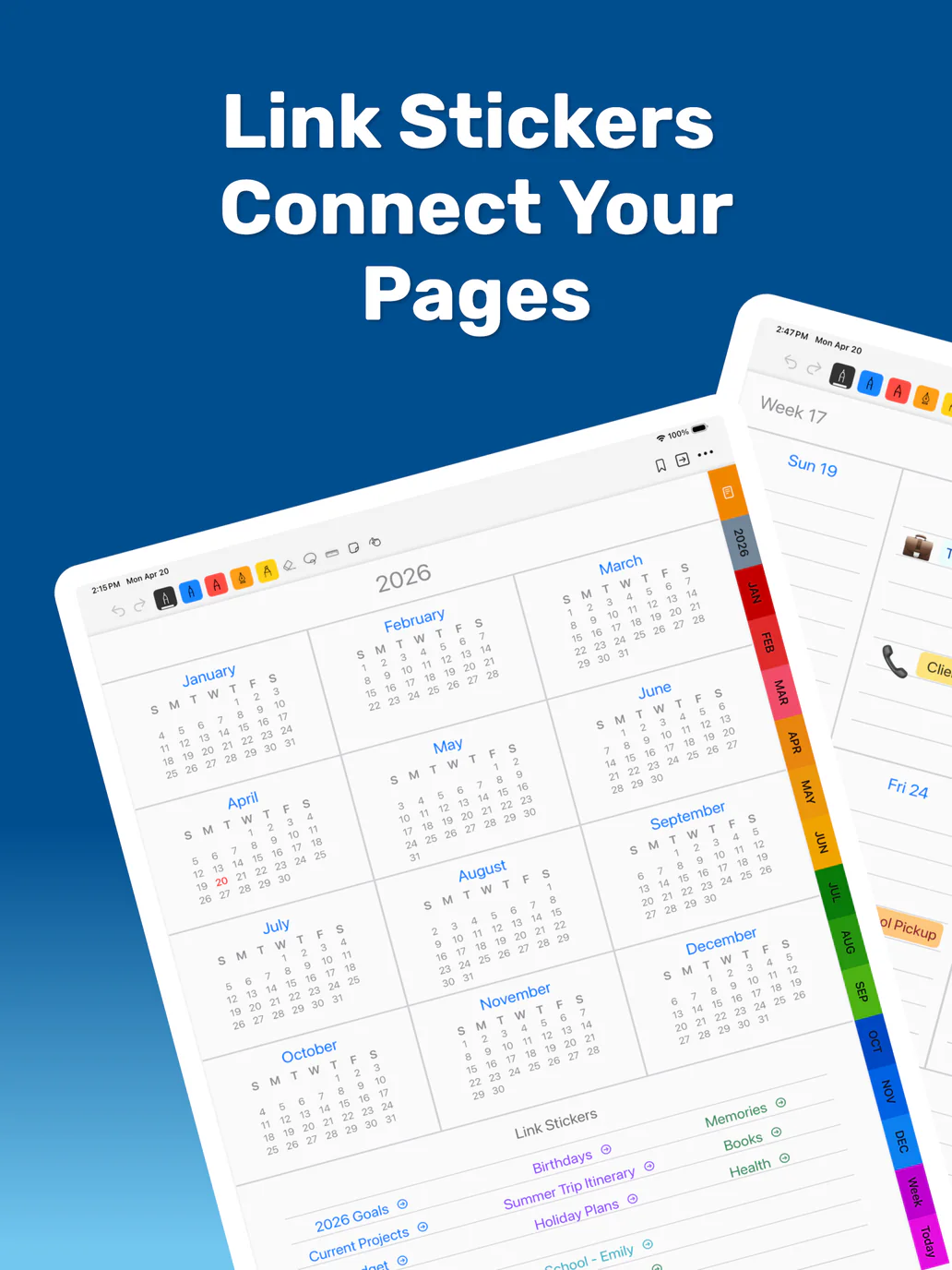
Add website, email, phone, and message Links as compact Chips or detailed Cards. Attach a copied file to the page and open it in the system Quick Look preview.
Mark up with editable Shapes
Add lines, arrows, rectangles, rounded rectangles, and ellipses. Adjust stroke, fill, width, and opacity, then move, resize, rotate, duplicate, lock, or restyle each Shape.
Choose how the page fits in landscape
Use Fit Page to keep the complete portrait page visible or Fit Width for a larger writing area. Pinch to zoom in, then return quickly to your selected fit.
Screenshots
See PencilTime in action.
FAQ
Common questions
Can I use PencilTime with Apple Pencil?
Yes. PencilTime is designed around handwritten planning with Apple Pencil on iPad, with touch input available on supported devices.
Can I type notes in PencilTime?
Yes. Type on any bundled Note page template, in Year/Month/Week notes areas, and in supported Day page fields. You can switch between typing and Apple Pencil drawing so typed details and handwriting live together.
Does PencilTime work with Magic Keyboard?
Yes. Magic Keyboard and other hardware keyboards work in supported text areas and do not require Premium. Open any bundled Note page template and tap its keyboard button, use the Notes area on a Basic Year, Month, or Week page, or select a supported field on a Basic Day page before typing.
Is PencilTime still focused on handwriting?
Yes. PencilTime is pencil-first. Typed notes are there for details that need to stay easy to read, while Apple Pencil remains the main workflow for planning, sketching, and marking up pages.
Can I change a Note page template without losing my work?
Yes. Changing a Note page template replaces only its background. Handwriting, typed text, stickers, Links, files, Shapes, reminders, and tags stay in place.
Can I create or import my own Note page templates?
Not in version 1.11. PencilTime provides 26 bundled templates for selection. Template creation, editing, import, export, and user-defined categories are not included.
What kinds of Links can I keep on a page?
You can add Page, website, email, phone, message, and File Links. Resource Links can appear as a compact Chip or a Card with more detail.
Does a File Link stay connected to the original file?
No. PencilTime imports and keeps a copy with the page. Later changes to the original file do not update that copied attachment automatically.
Are Shapes included when I export a page?
Yes. Editable lines, arrows, rectangles, rounded rectangles, and ellipses appear in PDF and PNG page exports without their editing controls.
Does Fit Page add landscape planner templates?
No. Fit Page and Fit Width are viewing modes for PencilTime’s existing portrait planner pages. They do not add landscape-oriented templates.
Guides
Learn common PencilTime workflows.
How to choose an Apple Pencil planner
What to look for in a handwriting-first iPad planner and where PencilTime fits.
TutorialHow to use Note Pages in PencilTime
Use Note Pages for meetings, projects, classes, collections, and planning dashboards.
TutorialHow to use Page Links in PencilTime
Connect planner pages, Note Pages, project dashboards, and recurring workflows inside PencilTime.
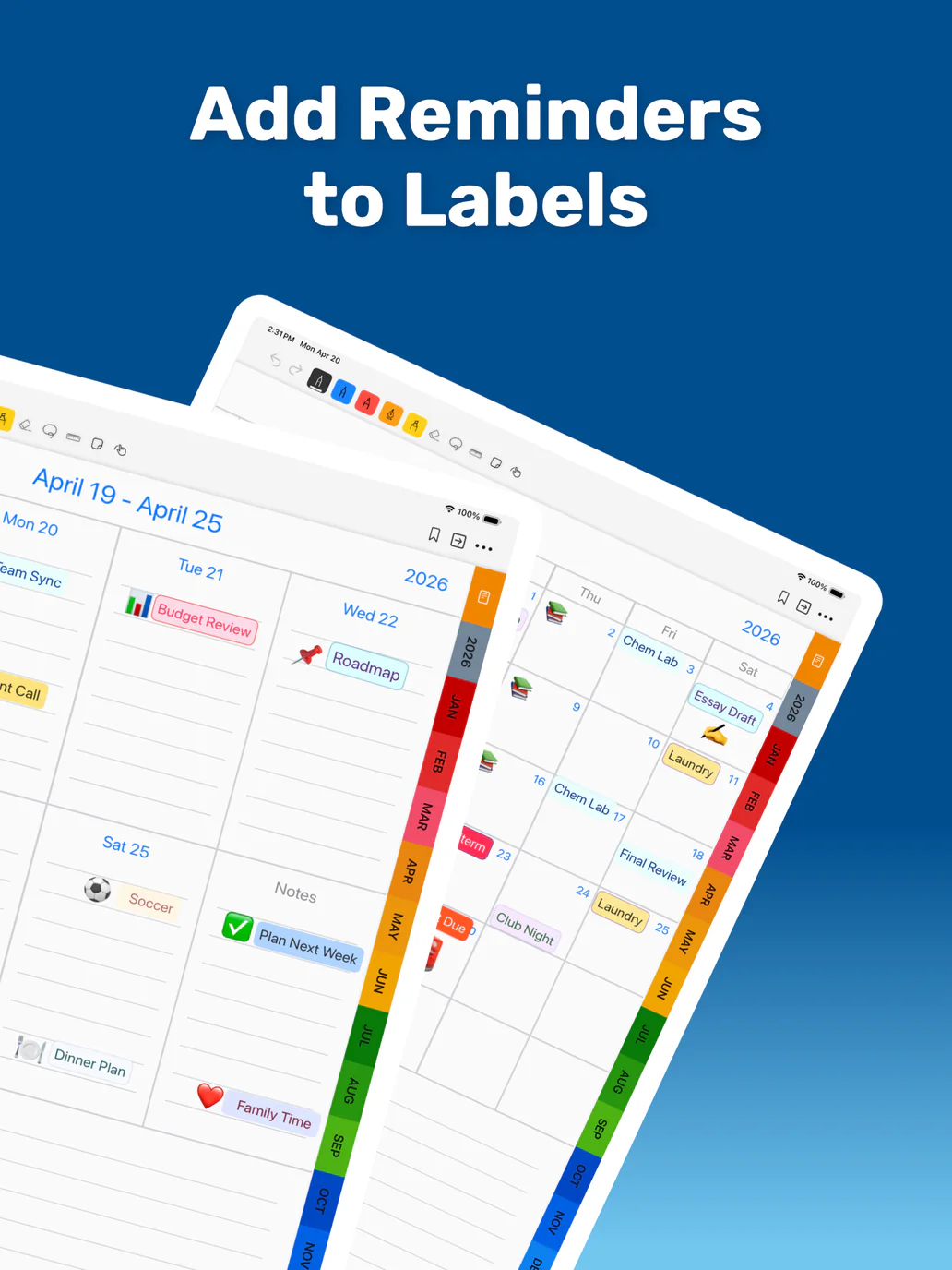
FeatureHow Reminder Stickers work in PencilTime
Attach reminders to visible planner labels and understand how notifications sync.
WorkflowHow to use PencilTime as a student planner
Plan classes, assignments, exams, lecture notes, and semester projects with Apple Pencil.
WorkflowHow to use PencilTime for project planning
Build project dashboards, link planning pages, track milestones, and keep handwritten notes together.
SettingsHow Date Labels and First Day settings work in PencilTime
Control planner language labels and week starts using PencilTime and iOS Language & Region settings.
FAQTyping and text input in PencilTime
Learn where typing works, how to use on-screen and hardware keyboards, format text, choose templates, and troubleshoot input.
TutorialHow to use Note page templates in PencilTime
Choose from 26 bundled layouts, change a Note background safely, and type on structured templates.
TutorialHow to add Links and files in PencilTime
Add Page, website, contact, and File Links, choose Chip or Card display, and manage them on the page.
TutorialHow to draw and edit Shapes in PencilTime
Create editable lines, arrows, rectangles, rounded rectangles, and ellipses with precise styling controls.
FAQHow to use Fit Page and Fit Width in PencilTime
Choose a landscape Page View, zoom for detail, reset quickly, and work comfortably with an external keyboard.
Need the full guide?
The app includes embedded help. You can also download the current PDF guide for reference.
Download PDF guide